- How does SmartBatchRenamer detect the real file format?
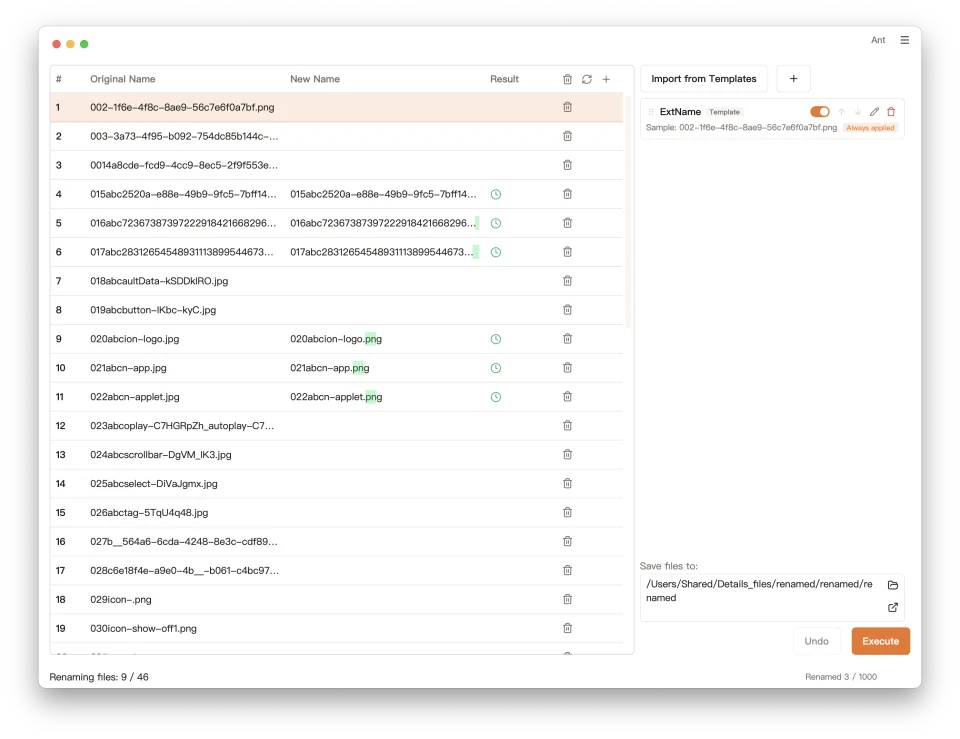
- SmartBatchRenamer reads signatures and internal structures from the file contents instead of trusting the filename. It can distinguish DOCX, XLSX, PPTX, APK, EPUB, and JAR even though they share a ZIP container. When content cannot be identified, it falls back to the existing extension in lowercase.
- Can it correct a wrong or missing file extension?
- Yes. Every file is checked even when no other rule changes its name. A mismatch produces a non-blocking warning; after you confirm the correction, the ExtName template rule always runs after all active rename rules.
- Can I preview filenames before applying a batch rename?
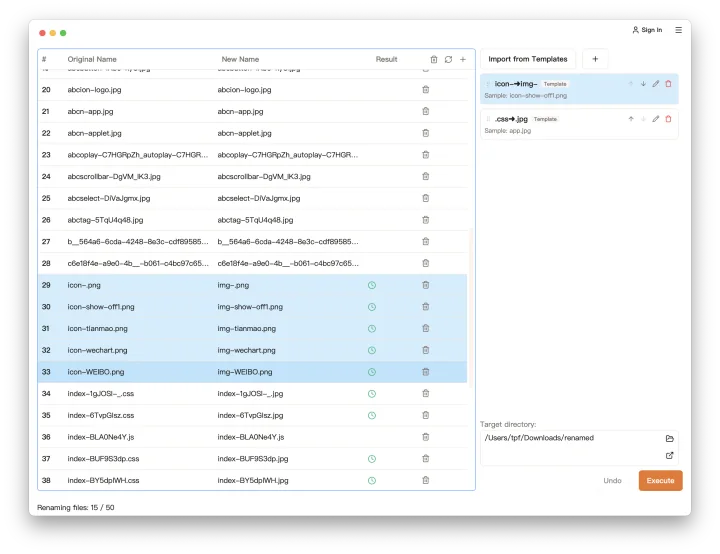
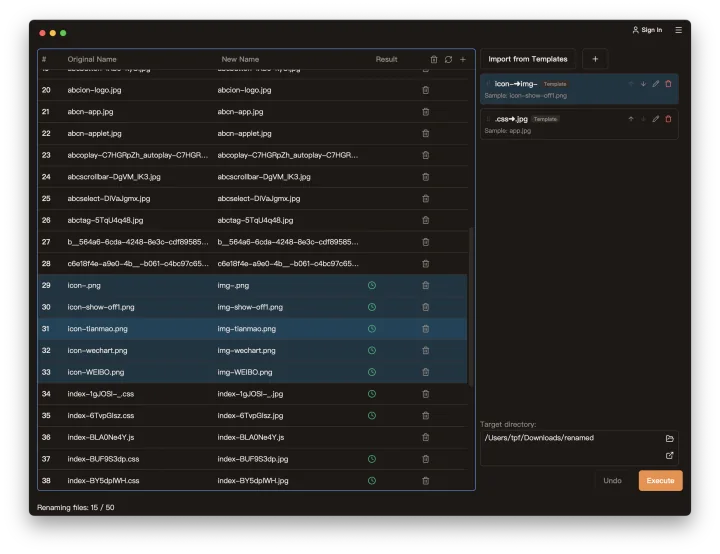
- Yes. Every rename rule updates the preview before execution, so you can compare original filenames with the new filenames first.
- Which rename operations can I use in a rule?
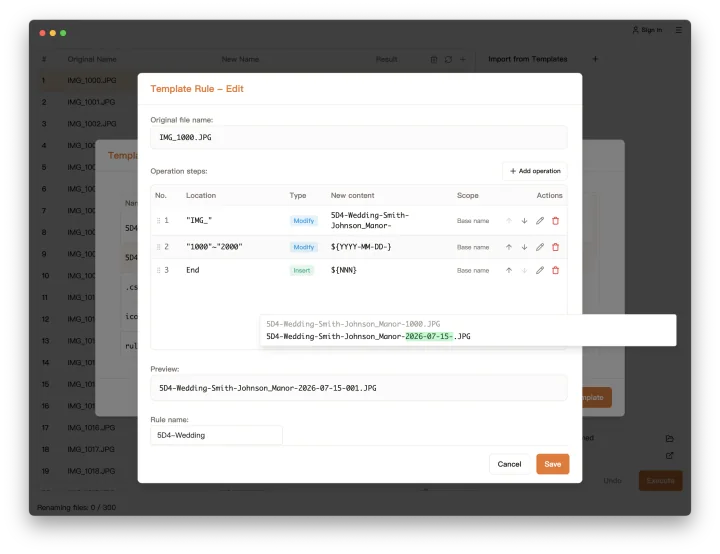
- SmartBatchRenamer supports insert text, search and replace, and delete-character operations. Operations can also use date/time, sequence number, and random sequence parameters, then be combined into a complete rename rule.
- Can I reuse rename rules for future tasks?
- Yes. After creating rules and saving them as template rules, you can reuse that rule set in later batch renaming tasks without rebuilding it from scratch.
- Can I undo a batch rename?
- Yes. After a rename is executed, one-click undo restores every file's original name.
- Are my files uploaded during renaming?
- No. File lists and rename operations are handled locally on your device, and file contents are not uploaded for batch renaming.
- Why do I need to sign in?
- Sign-in identifies your account, records allowance usage, and verifies VIP entitlements. It never uploads your file contents, file names, or directory information. The free allowance is counted per account and per computer: once either your account or the computer you are using reaches the limit, the allowance is used up.